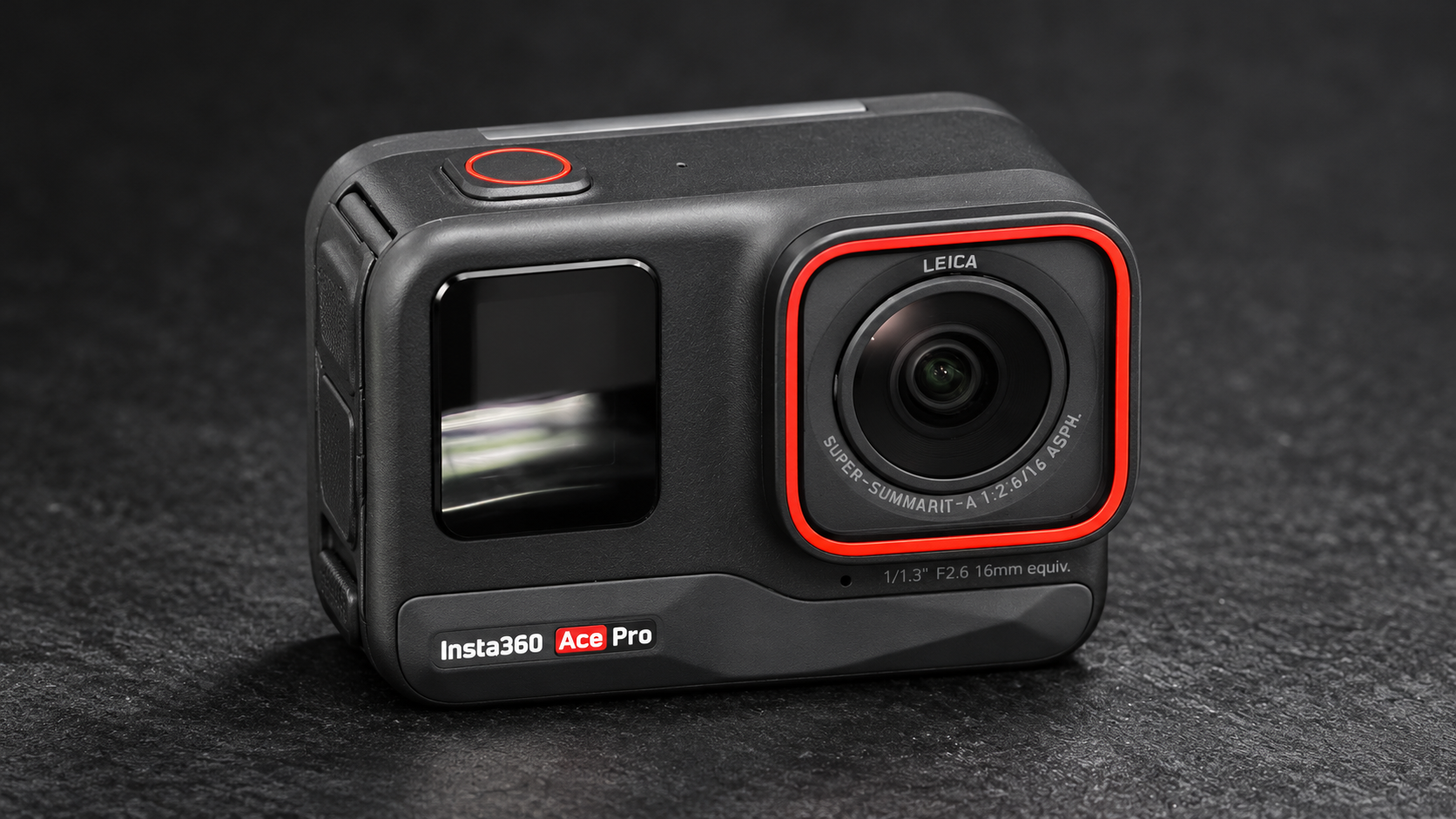
A camera on a selfie stick or tucked into a small rig can be awkward to reach. BT Cam now supports Insta360 cameras over Bluetooth, so you can take a photo or start recording from your phone without touching the camera.
If you already use BT Cam for another camera, you can bring a supported Insta360 into the same app. That makes it easier to include an extra angle without reaching for a different remote.
Which Insta360 cameras are supported?
BT Cam's compatibility list includes these models:
- X series: X3, X4, X4 Air, X5 and X6, plus the ONE X3 and ONE X4 names listed in the app.
- ONE RS: ONE RS and ONE RS 1-Inch 360.
- Ace series: Ace, Ace Pro and Ace Pro 2.
- GO series: GO 2, GO 3 and GO 3S.
Check the supported camera list for your exact model before setting up a shoot. Bluetooth alone does not make every Insta360 camera compatible.
Connect before you mount the camera
Keep the camera screen within reach for the first connection. You'll need to confirm the request on the camera itself.
- Turn on your Insta360 camera and enable Bluetooth on the device running BT Cam.
- Open BT Cam and select your Insta360 camera from the discovered devices.
- Confirm the connection on the camera screen.
- Wait for the controls to become available, then take a test photo or record a short clip.
Once you've checked that the controls work, put the camera in position. For a tripod shot, that means you can step into the frame and trigger the shutter from your phone. For video, you can leave the camera mounted and start or stop a take from BT Cam.
Photos, recording and location data
The Insta360 integration supports taking photos and starting or stopping video recording. BT Cam also receives recording-state updates from the camera.
Geotagging is supported too. With geotagging enabled and location access allowed on your device, BT Cam can send location data to the camera. It uses the remote device's location, so keep that in mind if the camera and phone are some distance apart. Check a sample capture in your usual workflow before relying on location metadata for a project.
Support here covers capture controls and geotagging. Set the image settings you need on the camera before the shoot; this integration does not provide focus or zoom controls.
Add an Insta360 angle to your setup
A small camera can be useful where your main camera would get in the way: beside a workbench, close to an instrument, or facing back toward you during a demonstration. BT Cam's multi-camera controls let you include supported cameras in one setup.
Connect each camera and test a short take before you begin. Remote triggering helps you operate the cameras together, but it does not promise frame-accurate synchronization between them.