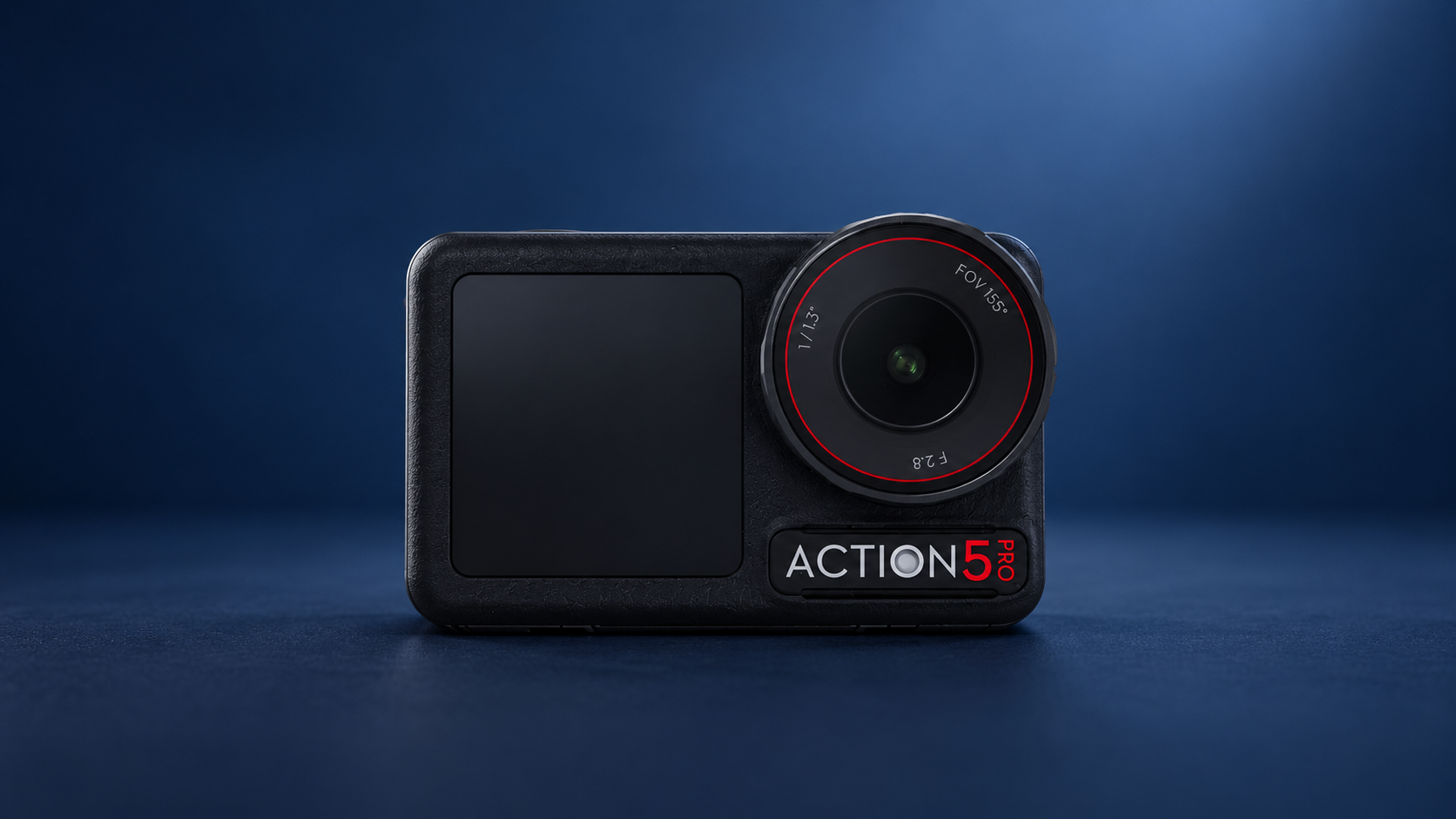
Once you've fixed an action camera in place, pressing its record button can mean reaching around a mount or disturbing the angle you just set. BT Cam now supports Bluetooth photo and recording control for selected DJI Osmo cameras. You can leave the camera where it is and operate it from your phone.
The integration is useful for a camera mounted near an activity, a second angle on a tripod, or a shot you're appearing in yourself. It also brings supported DJI cameras into the same app you use for your other BT Cam cameras.
Supported DJI models
You can connect these cameras:
- DJI Osmo Action 4
- DJI Osmo Action 5 Pro
- DJI Osmo Action 6
- DJI Osmo 360
This support is specific to those Osmo models. It does not include DJI drones, Osmo Pocket cameras or every earlier Osmo Action. You can check the camera compatibility list before downloading.
Pair your Osmo with BT Cam
Leave the camera screen accessible while pairing. DJI asks you to confirm a verification code on the camera.
- Turn on Wireless Connection on your DJI Osmo camera.
- Enable Bluetooth on the device running BT Cam, then open the app.
- Select the DJI camera in BT Cam.
- Check and confirm the verification code on the camera screen.
- Wait for the camera controls, then take a photo or start and stop a short test recording.
Do this before putting the camera somewhere difficult to reach. The test clip is also a chance to check your framing and camera settings before you start the actual shoot.
What you can control
BT Cam can trigger a photo and start or stop video recording on the supported DJI models. Recording-state updates from the camera let the app track whether it is recording.
Choose your resolution, frame rate and other image settings on the camera before you begin. The DJI integration covers photo and video triggering, recording-state updates and geotagging; it does not add focus or zoom control.
If you're recording yourself, you can start a take after getting into position. If the camera is part of a larger setup, BT Cam's multi-camera controls let you operate it alongside other supported cameras. Test the setup before an important take. A shared trigger is not a guarantee that every camera starts on exactly the same frame.
Send GPS data from your device
DJI support includes geotagging. Enable it in BT Cam and allow location access so the app can send GPS data from your device to the camera.
The location comes from the device running BT Cam. If you're standing away from the camera, the coordinates describe where your remote device is. Record a sample and check the location data in your editing workflow before using it for a shoot that depends on accurate metadata.